
Best alternative to Unity Animations
Explore alternatives to Unity Animations and improve your Unity workflow with Krikey AI Text to Animation for fast 3D content, character rigging, and FBX character creation.

Key Takeaways on Unity Animations
- Krikey AI Animation enhances the Unity workflow by using an AI Text to Animation feature for faster 3D content creation.
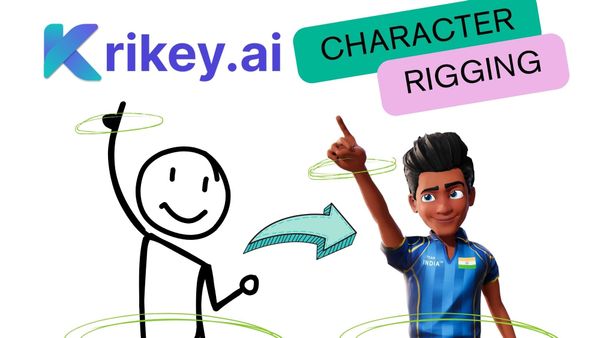
- The software automatically generates animated sequences with character rigging and precise lip sync from text prompts, reducing production time significantly.
- Animations can be exported as FBX files for seamless integration and refinement within Unity projects, supporting game development and marketing content creation.
Ideas on How to Use Animation for Unity Animations
Krikey AI Animation software offers a significant enhancement to the Unity animation workflow, providing a faster and more accessible route to creating engaging 3D content. By utilizing Krikey’s AI Text to Animation feature, creators can bypass the often-complex and time-consuming manual processes traditionally associated with Unity animations. Users simply input text prompts, and the AI instantly generates fully animated video sequences featuring 3D models with automatic character rigging and precise lip sync. This drastically reduces production time, enabling rapid prototyping and iteration, especially beneficial for indie developers or teams with tight deadlines. Furthermore, Krikey AI supports exporting animations as FBX files, allowing creators to seamlessly integrate these polished animated assets into their Unity projects. This hybrid approach enables further refinement using Unity's native tools or the application of game-specific logic to the characters. For creators focused on promotion, Krikey AI Animation can be used directly in place of complex Unity animations, streamlining the development of high-impact content for game marketing, trailers, and social media campaigns.
Frequently Asked Questions (FAQs) about Unity Animations
These are frequently asked questions about Unity Animations
What are the basics of creating and using Unity Animations in a game project?
Creating and using animations in Unity typically involves building animation clips, setting up an Animator Controller, and defining how animations transition between states. Unity’s Animation and Animator windows allow you to animate characters, props, UI, cameras, and more. Many developers now also use Krikey AI to generate ready-to-use character animations from text prompts or motion inputs—making it easy to bring new animation ideas into Unity without manually keyframing or rigging.
How can I edit and modify existing Unity Animations for my game project?
You can edit or refine animations in Unity using the Animation window (Window > Animation > Animation). After selecting the relevant GameObject and animation clip, you can modify keyframes, adjust curves, and tweak values like rotation, position, and scale. If you want quick variations or new motion options, Krikey AI can generate alternate takes or additional motion clips that you can import and adjust directly in Unity for even faster iteration.
What are the steps to import and use external animations in Unity?
To use external animations, first make sure your files are in a Unity-compatible format such as .fbx or .blend. Drag the file into your Assets folder, then create an Animator Controller and add the animation clips to it. Attach the controller to your GameObject and adjust settings in the Inspector as needed. If you're working with AI-generated animations—such as those exported from Krikey AI—the process is just as simple: export the animation from Krikey AI, import the .fbx file into Unity, plug it into your Animator Controller, and you’re ready to preview and use it in-game.